How to Set Up DistroKid Splits for Producer and Feature Collaborations (Without the Headache)
You just finished a session. The beat hits heavy, your verses are locked in, and the featured artist completely set the hook on fire. You package the track up, hit upload on DistroKid, and prep for drop day.
Then the awkward text messages start showing up three months later.
“Yo bro, Spotify paid out yet?”“Hey man, where’s my cut for that beat?”
If you’ve been making music for more than five minutes, you know that managing money with friends and collaborators is easily the fastest way to ruin a solid creative relationship. Trying to track down streaming numbers, convert micro-cents into actual dollars, and Venmo your producer $14.32 every month feels like working a second job you never applied for.
Luckily, if you use DistroKid, you don’t have to play unpaid accountant. Their SplitPay tool handles the entire accounting process automatically. But setting it up properly—especially when you are balancing multiple people, producer cuts, feature percentages, and upfront studio costs—requires a little bit of setup.
Here is the straightforward, step-by-step guide on how to set up DistroKid splits for producer and feature releases so everyone gets paid on time and you can focus on making your next record.
What Is DistroKid SplitPay and How Does It Actually Work?
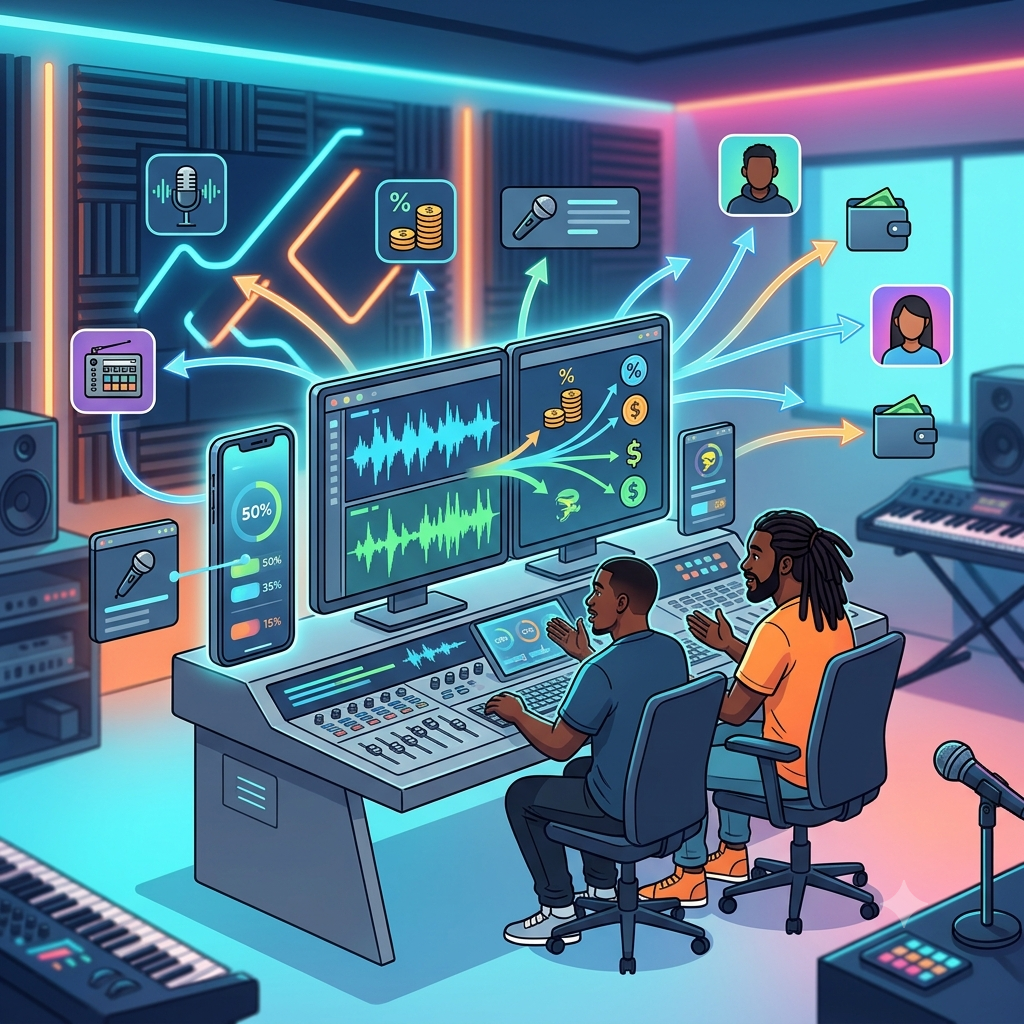
At its core, DistroKid SplitPay is an automated revenue routing tool. Instead of 100% of your song’s streaming royalties flowing into your personal DistroKid balance, SplitPay chops up the incoming payments at the source and sends the exact designated percentages directly to your collaborators’ individual accounts.
Whether your song makes $5 or $50,000 across Spotify, Apple Music, Tidal, and Amazon Music, DistroKid handles the math, tax forms, and payouts independently for every person on the track.
The Catch You Need to Know Upfront
Before you start entering emails, your producer and featured artist need to have their own DistroKid account to receive payouts.
The good news? DistroKid gives collaborators a free account option called a “SplitPay Account” if they only need to log in, claim their splits, and withdraw money. They don’t necessarily have to pay for a full yearly subscription just to collect their royalties from your song.
Step 1: Head to the SplitPay Manager
You can set up splits either during the initial upload process or at any point after the song is already live on streaming platforms.
If your track is already uploaded:
-
Log into your main DistroKid Dashboard.
-
Look at the top navigation bar and click on the Features icon (the small 3×3 grid icon near the top right).
-
Select SplitPay from the menu.
-
Pick the track you want to configure from your master list of releases.
If you are uploading a fresh track, DistroKid will prompt you near the end of the upload form to add collaborators. If you aren’t ready with percentages on upload day, don’t worry—you can save the upload and configure SplitPay later without pulling the track down.
Step 2: Assigning Email Addresses and Percentage Cuts
This is where you plug in the numbers agreed upon in your split sheet or verbal contract.
-
Enter Collaborator Email Addresses: Input the exact email address your producer and featured MC use for their DistroKid account. Double-check the spelling here. If you type
gmail.coinstead ofgmail.com, your producer’s cut sits in digital limbo until you catch the error. -
Set the Percentage Share: DistroKid defaults to giving you 100% until you start modifying the fields. Adjust the percentages until the total equals exactly 100%.
Standard Industry Split Examples for Hip-Hop Drops
If you aren’t sure how much to offer, here is how real-world independent hip-hop splits usually look:
-
The 50/50 Producer Split (Standard):
-
You (MC/Artist): 50%
-
Producer: 50% (Used when a producer builds the beat from scratch specifically for you and takes no upfront beat license fee).
-
-
The Track with a Featured Verse:
-
You (Lead MC): 50%
-
Producer: 35%
-
Feature Artist: 15%
-
-
The Paid Beat License Model:
-
You (Lead MC): 70%
-
Feature Artist: 15%
-
Producer: 15% (Common when you already paid the producer a $100–$300 commercial lease up front, but granted them a small backend percentage on streams).
-
Once you hit submit, DistroKid will send an automated invitation to your team. Your collaborators will need to log into DistroKid and accept the split agreement before their share starts accumulating in their balance.
Step 3: Setting Up Recoupable Expense Holds (Recoups)
What happens if you spent $500 out of your own pocket to pay an engineer for mixing and mastering, or bought an exclusive beat license up front? You shouldn’t have to split royalties 50/50 from dollar one while you are still down five hundred bucks.
DistroKid includes a feature inside SplitPay specifically for recoupable expenses.
How Recoups Work:
-
When configuring the track’s SplitPay, choose the Recoup Expense option.
-
Enter the specific dollar amount you paid out of pocket (e.g.,
$500). -
Designate yourself as the recipient of the recouped funds.
When the song hits streaming services, 100% of initial streaming royalties go directly to you until that designated dollar threshold is met.
The moment the track earns its 500th dollar, DistroKid automatically unlocks the original percentage split (e.g., 50% to you, 35% to the producer, 15% to the feature) for dollar $501 and beyond. It keeps things completely transparent—your team can see the progress bar in their dashboard, so nobody feels cheated while you get your initial investment back.
Step 4: Editing or Removing Collaborators Down the Line
Business changes, contracts expire, and sometimes splits need to be restructured. Whether a featured artist bought out their share, a producer agreed to waive back-end rights after an upfront buyout, or you simply made a typo, modifying existing splits is simple:
-
Re-open your SplitPay tab on DistroKid.
-
Find the song in your catalog and click Edit Splits.
-
Adjust the percentage numbers, swap out email addresses, or hit the Remove button next to a specific collaborator.
-
Save your changes.
A Quick Warning on Retroactive Royalties
DistroKid splits are not retroactive. If your track earned $1,000 last month while configured as 100% to you, and you add your producer today, DistroKid will not pull money out of your bank account to pay them for past months. The new percentage split only applies to future royalty payouts processed after the change is saved and accepted.
Keep Your Business Tight, Keep Your Music Moving
Learning how to set up DistroKid splits for producer and feature collaborations is one of those simple administrative habits that instantly separates amateur artists from professional musicians. When your collaborators know their money is secure and automated, they are far more likely to jump on your next project, send you their best beat packs, and share the song with their own audience.
Now that your back-end streaming mechanics are set up and automated, your only focus should be driving real traffic to the release. Once your revenue splits are configured, drive incoming royalties with our music submission portal.