How to Set Up Apple Music Pre-Add on ToneDen (Step-by-Step Guide)
If you are rolling out a new single or album, getting fans to save your track before release day is one of the single most effective ways to trigger streaming algorithms. On release Friday, platforms look closely at early velocity—saves, initial streams, and library additions.
ToneDen (by Eventbrite) remains one of the go-to landing page builders for independent artists and music marketers because it lets you bundle multiple platforms into one link. But while setting up a Spotify Pre-Save is fairly straightforward, artists regularly hit friction when trying to configure Apple Music Pre-Adds. Apple’s permission structure works differently, requiring specific metadata links and API authorization to drop the song straight into a user’s library on release day.
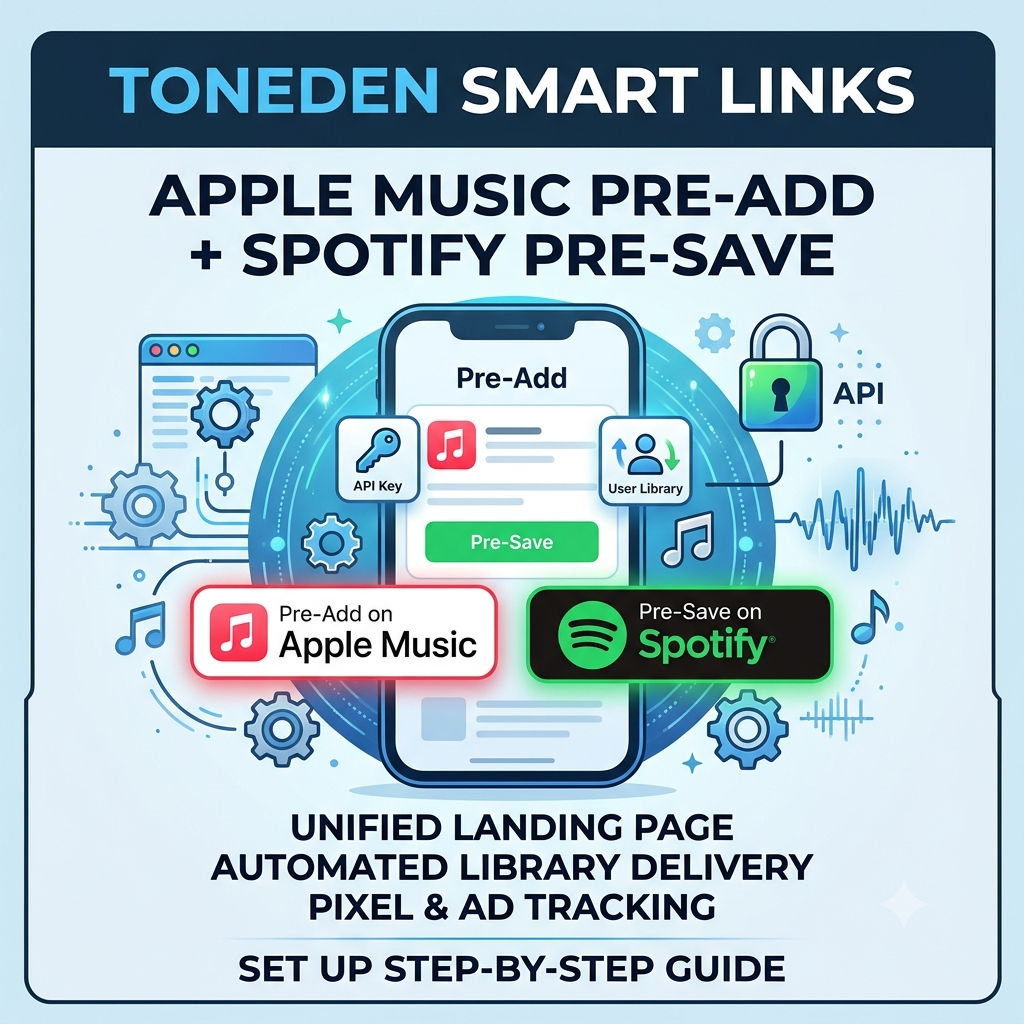
In this guide, we will walk through the entire setup: building a unified landing page that captures both Spotify Pre-Saves and Apple Music Pre-Adds, configuring automated library delivery, and setting up conversion tracking so your ad budget does not go to waste.
Why You Need a Dual Pre-Save & Pre-Add Landing Page
A common mistake artists make is sending fans to multiple separate links or building a page that only supports Spotify. While Spotify holds a massive share of the streaming market, ignoring Apple Music means leaving valuable release-day momentum on the table.
Apple Music users are notoriously high-value listeners—they tend to spend more time building personal libraries and curated playlists. A Pre-Add on Apple Music functions similarly to a Spotify Pre-Save: when a fan clicks your link and authenticates their account, your upcoming track or album automatically pops into their Apple Music library the second it officially drops.
By setting up a unified landing page on ToneDen, you ensure that every fan who hits your link can save your music in two clicks, regardless of which streaming service they pay for.
1. Core Prerequisites Before You Start
Before opening your ToneDen dashboard, gather these pieces of information. Missing even one will stall your setup.
-
Your ISRC Code: Generated by your distributor (DistroKid, TuneCore, CD Baby, UnitedMasters, etc.) when you upload your release.
-
Apple Music Product Link or Apple ID: Your release must already be ingested by Apple Music and inside its “Pre-Order / Pre-Add” window. You will need either the direct song/album Web URL from Apple Music or the numeric Content ID.
-
Active ToneDen Account: Connected to your artist social accounts.
-
Meta & TikTok Pixels (Optional but Recommended): Needed if you plan to run paid traffic via Meta Ads Manager or TikTok Ads.
2. Step-by-Step: Setting Up Apple Music Pre-Add on ToneDen
Here is the exact step-by-step workflow to build your dual Pre-Save and Pre-Add campaign inside ToneDen.
Step 1: Launch a New Smart Link Campaign
-
Log into your ToneDen dashboard.
-
Navigate to Smart Links in the left sidebar menu and click Create New Smart Link.
-
Select Music as your campaign category.
-
Choose Pre-Save / Pre-Add Campaign as your campaign type.
Step 2: Input Your Release Metadata
ToneDen will prompt you to name your campaign and search for your release.
If your release is already live in Apple’s catalog as a pre-order, you can paste your Apple Music Web Link directly into the search bar. If it does not auto-populate, switch to manual entry and input your ISRC Code or Apple Music Content ID. ToneDen uses this identifier to query Apple’s backend systems via the Apple Music API.
Step 3: Configure Apple Music API Authorization & Library Delivery
Unlike a standard link that just sends visitors to a web page, an Apple Music Pre-Add requires permission to write to the user’s personal music library.
-
Under the Platforms setup tab, toggle on Apple Music.
-
Make sure Automated Library Delivery is enabled.
-
When a fan clicks “Pre-Add on Apple Music,” ToneDen will launch a secure Apple authentication pop-up. Once the user signs in with their Apple ID, ToneDen stores a secure user token. On release day, ToneDen’s automated systems use this token via the Apple Music API to push your release straight into their library without requiring the fan to do anything else.
Step 4: Add Spotify Pre-Save to the Same Page
Do not create two separate links for Spotify and Apple Music. Keep your campaign simple by including both options on the exact same page.
-
In the same Platforms tab, toggle on Spotify.
-
Connect your Spotify URI or Spotify Pre-Save URL.
-
Drag and drop the platforms to arrange which button appears on top based on where most of your audience listens.
ToneDen will generate a clean, dynamic landing page with responsive buttons that automatically adapt to whether your visitor is on desktop or mobile.
3. Configuring Conversion Tracking & Retargeting Pixels
If you are spending money on Instagram, Facebook, or TikTok ads to drive traffic to your ToneDen link, setting up proper pixel tracking is non-negotiable. Without it, your ad account cannot optimize for actual Pre-Adds and Pre-Saves.
Adding Your Pixel IDs
In ToneDen, navigate to the Analytics & Pixels step of your campaign setup:
-
Meta Pixel: Paste your Pixel ID from Meta Events Manager.
-
TikTok Pixel: Input your TikTok Pixel ID if running campaigns on TikTok.
Understanding ToneDen Event Tracking
ToneDen automatically fires standard conversion events when visitors interact with your link:
-
ViewContent: Fires as soon as someone lands on your smart link page. -
LeadorCompleteRegistration: Fires when a visitor successfully completes the authentication flow for Apple Music or Spotify.
When setting up your conversion campaigns in Meta Ads Manager, select CompleteRegistration (or the specific custom event mapped by ToneDen) as your optimization goal. This tells Meta to show your ads to people who actually log in and complete the Pre-Add, rather than people who just click the link and leave.
4. Best Practices for Driving Pre-Add Conversions
Once your link is built and tested, your main job is driving qualified traffic to it. Here are a few tactics to bump up your conversion rates:
-
Test Your Link on Mobile: Always open your ToneDen link on an actual smartphone before sharing it. Run through the Apple Music login process yourself to make sure the API pop-up functions seamlessly.
-
Use a Custom Sub-Domain: Where possible, point ToneDen to a custom domain (e.g.,
music.yourartistname.com). Custom domains build trust with fans and help mitigate tracking drop-offs associated with mobile web browsers. -
Focus on Clear Calls to Action: In your social copy, tell fans why they should Pre-Add. Let them know it drops the track straight into their library the moment midnight hits.
Once your campaign is live, you can maximize your release-day library saves by routing traffic into our subgenre-specific hip-hop playlisting (https://itshiphopmusic.com/submit/music-submission/) channels.
Final Checklist Before You Launch
-
[ ] Verified ISRC and Apple Music Content ID are correct.
-
[ ] Apple Music API library delivery is enabled in ToneDen.
-
[ ] Both Spotify Pre-Save and Apple Music Pre-Add buttons are active on the landing page.
-
[ ] Meta and TikTok Pixels are attached and firing standard events.
-
[ ] Mobile user experience tested on iOS and Android.
Setting up a dual Apple Music and Spotify landing page takes a few extra minutes during pre-release prep, but capturing saves across both major platforms sets your release up for the strongest possible first-week performance.
🚀 Deliver Your Release to Global Rap Audiences
Ready to push your release beyond your existing fan base? Deliver your release to active global rap audiences by submitting your music directly to our curators.