Every independent artist knows the feeling: you spend weeks tweaking a vocal lead, perfecting your cadence, and engineering your mix to punch through the speakers. A fan taps play on Apple Music, opens the real-time lyrics screen to read along to your best wordplay, and… nothing. Or worse, a mess of broken line breaks, missing verses, and incorrect crowd-sourced words.
Having clean, perfectly synced, verified lyrics inside the Apple Music ecosystem is easily one of the most slept-on moves for building replay value. When listeners can follow your bars line-for-line without leaving the player, your retention rates jump, fans memorize your hooks faster, and your track looks like a major-label release.
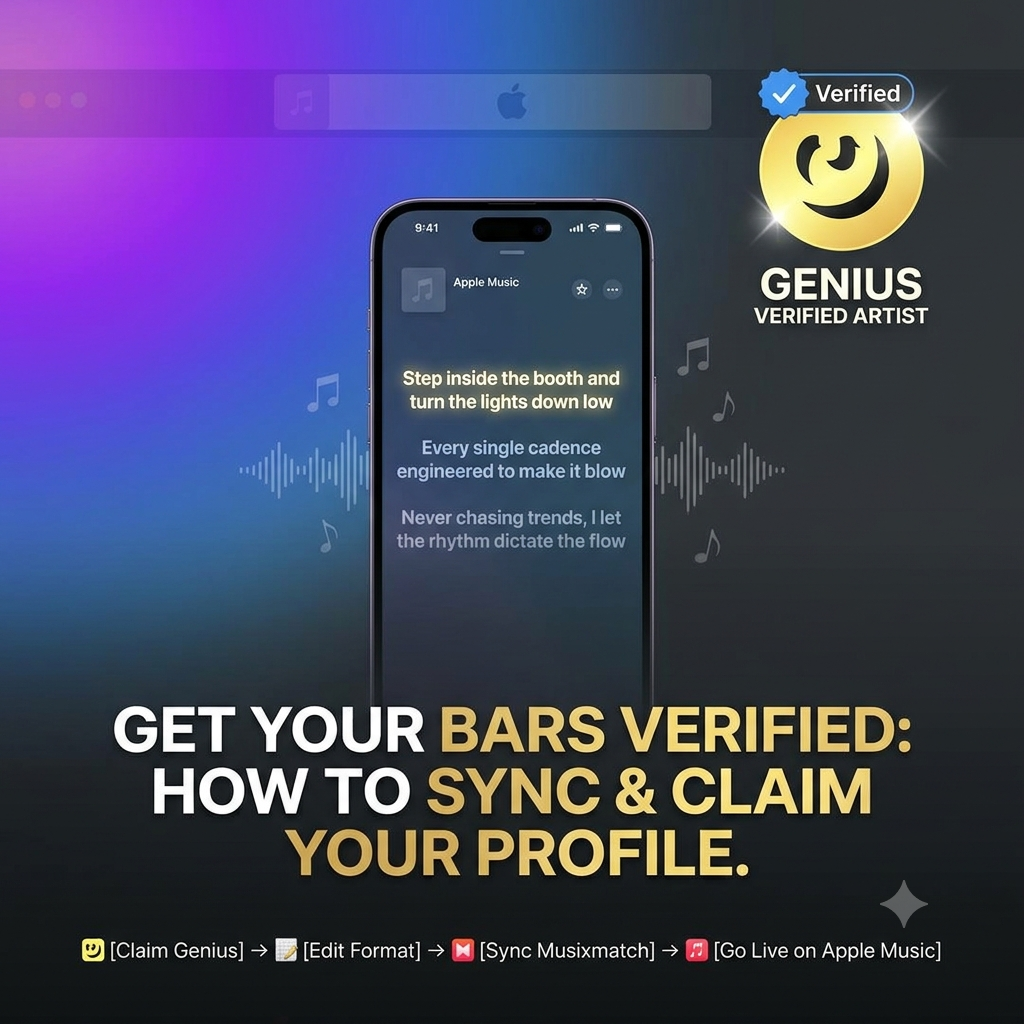
If you’ve been trying to figure out how to get lyrics on Apple Music Genius verified, this guide breaks down the exact end-to-end workflow—from locking down your Genius artist page to passing strict editorial guidelines and syncing your time-codes for iOS devices.
Step 1: Claim & Verify Your Artist Profile on Genius
Genius is the undisputed standard for lyric annotations and verified text metadata. While Apple Music pulls raw time-coded text from lyric aggregators, having the official Genius Verified badge gives your songs instant authority and establishes a direct line of communication with the broader Hip-Hop and music community.
1. Register Your Account Correctly
Do not register with a random email or generic username. Sign up using your official artist handle, and make sure your profile email matches the domain or contact email listed on your official website or press kit.
2. Submit for Genius Verification
Head over to the official Genius Verification page. To get approved for the checkmark, Genius requires clear proof of identity. You will need to connect:
-
Your official Spotify for Artists profile.
-
Your Apple Music for Artists page.
-
Verified social channels (Instagram, X, or YouTube).
3. Claim Your Song Pages
Once the checkmark appears on your profile, search for your existing tracks on Genius. On each song page, hit the “Claim Song” option. This marks your account as the definitive creator of those bars, granting you authority to edit annotations, approve transcription edits, and attach official artist notes to specific lines.
Step 2: Format Line Breaks to Pass Editorial Guidelines
One of the main reasons lyrics get delayed, flagged, or silently rejected by major streaming platforms is poor formatting. Human editors and automated ingestion filters on both Genius and Apple Music check submissions against strict style guides before pushing them live to millions of devices.
If your line breaks look like a messy text thread, your track will sit in approval queues indefinitely.
Correct Formatting Example:

[Intro]
Yeah, turn the monitor up a bit

[Verse 1: Lyricist Name]
Step inside the booth and turn the lights down low
Every single cadence engineered to make it blow
Never chasing trends, I let the rhythm dictate the flow (Dictate it)
Capitalization Rules
-
Capitalize the very first letter of every single line, regardless of grammar.
-
Capitalize proper nouns, city abbreviations, and artist names (e.g., LA, NYC, Southside).
-
Avoid ALL CAPS for full lines unless it represents a stylized, shouted title that is explicitly part of your trademark branding.
Punctuation Best Practices
-
No trailing punctuation: Do not put commas, periods, or semicolons at the end of lyric lines.
-
Internal punctuation: Use commas inside a line only when essential for reading comprehension or rhythmic pausing.
-
Exclamation points & question marks: Keep these minimal and use them only when the vocal performance clearly demands them.
Structure & Section Headers
Always organize your song structure using clean square brackets:
-
[Intro] -
[Verse 1]or[Verse 1: Featured Artist] -
[Chorus] -
[Bridge] -
[Outro]
Handling Ad-libs & Background Vocals
Background vocals, echoes, and ad-libs should never be mixed directly into the main vocal line without clear distinction. Place ad-libs in parentheses at the end of the line or give them their own line if they form an independent response pattern:
-
Line end:
Rolling up the dynamic range (Yeah, yeah) -
Dedicated line:
(Check the meters)
Step 3: Master the Multi-Platform Sync Pipeline
Here is a common point of confusion for independent musicians: Genius handles verification and annotations, but Musixmatch and your digital distributor handle the real-time scrolling engine on Apple Music.
To get the full experience—where your lines glow in sync with your vocal performance across iOS, iPadOS, macOS, and Apple TV—you have to connect both sides of the pipeline.
00:12.450 -> [Verse 1]
00:14.100 -> Step inside the booth and turn the lights down low
00:17.850 -> Every single cadence engineered to make it blow
1. Ingest Base Lyrics via Your Distributor
Before doing precision time-coding, feed your clean, plain-text lyrics directly into your distributor’s dashboard (DistroKid, TuneCore, CD Baby, or UnitedMasters). DistroKid uses a dedicated Lyrics tab, while others ingest text during the initial release setup. This creates the foundational static record inside Apple’s backend.
2. Join Musixmatch Pro for Millisecond Syncing
Musixmatch is Apple Music’s primary partner for real-time scroll sync. Register as a verified artist on Musixmatch Pro, download their desktop app, and link your catalog.
3. Lock In Time-Codes Line-by-Line (and Word-by-Word)
Open your song in the Musixmatch editor and enter sync mode.
-
Line Sync: Tap your spacebar precisely on the vocal transient of the first word in every line.
-
Word Sync: For fast rap verses or intricate cadences, step down into word-by-word sync mode to manually align high-speed bars.
-
Account for Pre-Roll: Always make sure your first time-code has enough lead time so the text doesn’t pop up late on the listener’s screen.
Once your sync is submitted on Musixmatch Pro, human curators review the timing. Within 3 to 7 business days, the interactive glowing text will go live inside the Apple Music player.
While your lyrics are rolling out smoothly across streaming services, ensure fans can read your bars word-for-word while driving stream volume with our targeted rap playlist placements.
Genius Verified vs. Apple Music Time-Synced
Understanding how these two systems complement each other prevents wasted effort and keeps your release rollout on schedule:
| Feature | Genius Verified Badge | Apple Music Time-Synced Lyrics |
| Primary Focus | Lyric Accuracy, Context & Annotations | Interactive Real-Time Scroll & Karaoke |
| Primary Platform | Genius App, Web, Search Engines | Native iOS, Apple Music App, Apple TV |
| Ingestion Route | Genius Artist Portal | Musixmatch Pro & Distributor Dashboards |
| Average Turnaround | 24 to 48 Hours | 3 to 7 Business Days |
| Best For | Storytelling & Deep Line Breakdown | Listener Engagement & In-Player Replay |
Final Checklist Before You Submit
Before pushing your lyrics live, double-check your release against this quick workflow summary:
-
Audio Match: Verify that the audio version submitted to streaming services matches the lyric draft word-for-word (including non-standard intro chatter or extra hook repeats).
-
Spelling Check: Double-check regional slang and phonetic spellings so fans can search your lyrics easily.
-
Credit Alignment: Ensure song section headers explicitly credit featured artists so metadata links work seamlessly across platforms.
-
Platform Test: Once live, pull up your track on an iPhone, hit the lyric icon, and verify the scroll speed on mobile data and Wi-Fi.
Fixing your lyrics takes an hour of upfront work, but the payoff lasts for the entire lifecycle of your record. Take control of your metadata, lock in your time-codes, and give your audience the polished presentation your music deserves.
Ready to Expand Your Reach?
Place your lyric-driven records on active lists. Submit via our Music Submission Portal.