How to Change Your Spotify Artist Picture Without Spotify for Artists (And Why You Can’t)
If you’re getting ready to drop your very first hip-hop track, you’ve probably stared at that blank, gray silhouette on your Spotify profile and wondered how to swap it out. You head over to your music distributor dashboard—whether that’s DistroKid, TuneCore, CD Baby, or UnitedMasters—looking for an edit button. You check your cover art uploads, dig through profile settings, and maybe even send a ticket to customer support asking how to change spotify artist picture without spotify for artists.
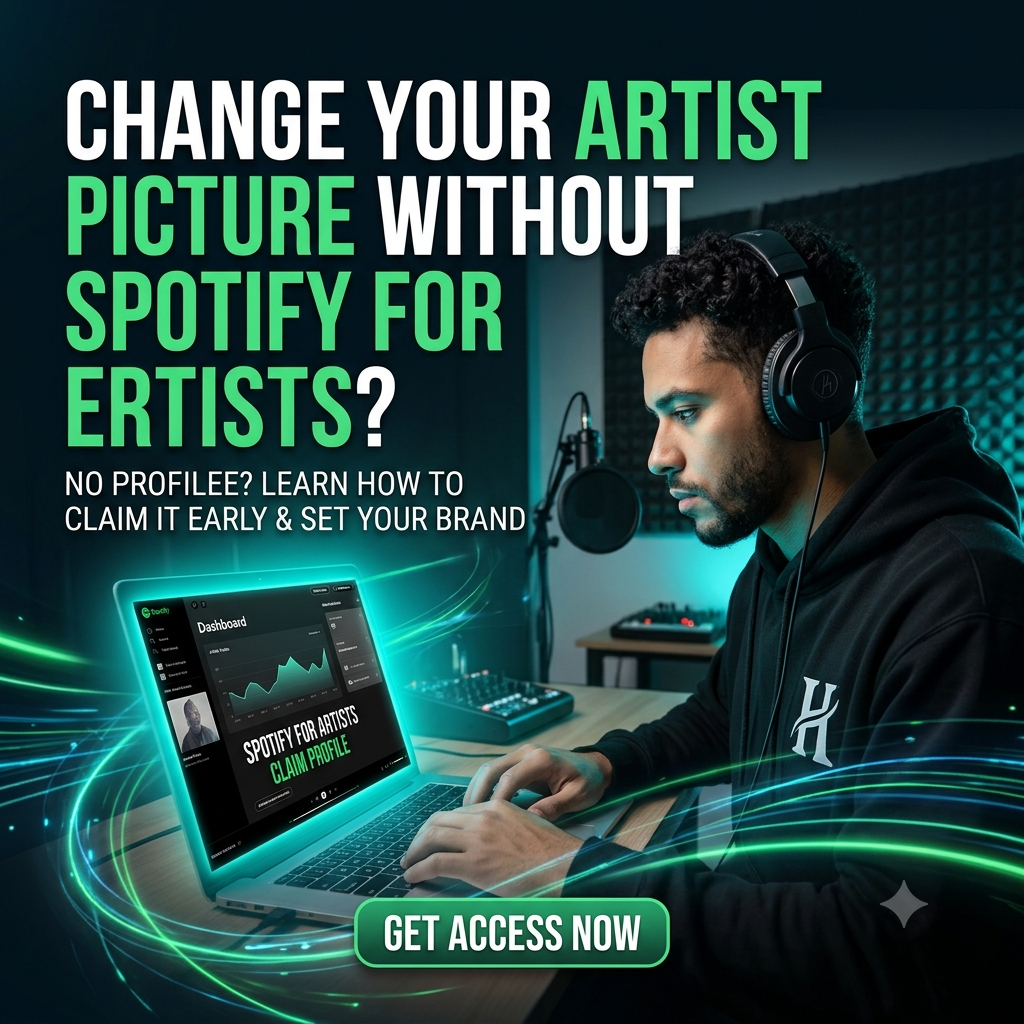
Here’s the straight answer upfront: you can’t change your Spotify artist picture without an active Spotify for Artists profile.
There is no backdoor setting inside your distributor, no secret email address at Spotify, and no metadata trick to push a profile picture alongside your audio files.
However, there is a massive catch-22 that catches almost every new MC and producer off guard: Spotify won’t let you search up a public profile that doesn’t have live music yet, but you want your branding locked in before release day so you don’t launch looking like an amateur.
Let’s break down the exact security boundaries that prevent third-party updates, why distributors have zero control over your profile visuals, and the step-by-step process to claim your artist account weeks before your track actually drops using an unreleased URI.
The Tech Wall: Why Distributors Can’t Touch Your Profile Picture
To understand why you need direct access to Spotify for Artists, you have to look at how data gets delivered to Digital Service Providers (DSPs).
When you finish a track and send it through a distributor, your upload is packaged into standard metadata formats (primarily DDEX feeds). This delivery package contains very specific elements:
-
Audio Files: High-resolution .WAV or .FLAC files.
-
Release Artwork: The cover art tied directly to that specific single, EP, or album.
-
Song Identifiers: Track titles, explicit tags, ISRC codes (International Standard Recording Codes), and UPCs (Universal Product Codes).
-
Credits & Rights: Songwriters, producers, featured artists, and publishing information.
Notice what isn’t on that list? Your profile avatar, header banner, artist bio, and social media links.
Catalog Data vs. Profile Data
Distributors only have write permission for catalog data. They acts as digital delivery trucks. They pull up to Spotify’s servers, unload your song metadata into the catalog system, and leave.
Your Spotify artist avatar belongs to profile data. This side of the platform is strictly managed by Spotify’s internal user permissions system.
Spotify purposely keeps these two systems separated by a thick digital wall. If third-party distributors had administrative access to edit artist profiles directly through their release feeds, it would create massive security risks. A compromised distributor account could mean unauthorized users hijacking artist photos, changing bios, or defacing profiles across the platform.
Because of these security boundaries, no third-party distributor on earth has the ability to upload or edit your Spotify artist picture. The only key that opens profile management is a verified Spotify for Artists account.
The New Artist Catch-22 (And How to Skip It)
This separation causes a frustrating problem for independent artists planning their first official release:
-
You want your profile to look clean, professional, and branded on launch day.
-
You try to claim your Spotify for Artists account, but searching your name brings up nothing because your track isn’t live yet.
-
Spotify tells you to come back once your music is available.
-
If you wait until release day, your music goes live with a blank gray avatar, and you waste precious launch momentum fixing admin issues instead of pushing your record.
Nobody wants to send new listeners or playlist curators to a bare profile. It makes you look like a bedroom hobbyist who uploaded a track on a whim rather than a serious artist building a brand.
The good news? You do not have to wait for your release date to claim your profile. You just need to know how to bypass the standard search bar using your release’s unique identifiers while it’s sitting in Spotify’s pending queue.
Step-by-Step: Setting Your Artist Picture Before Release Day
To fix your avatar before your music hits streaming feeds, you need to pull your release’s backend information right after your distributor approves it. Here is the exact walkthrough to get verified and set your visuals early.
Step 1: Upload to Your Distributor Early
Do not upload your track three days before your release date and expect everything to go smoothly. Schedule your release date at least 2 to 3 weeks out. This gives your distributor enough time to review your audio, process your release artwork, and send the metadata package over to Spotify.
Step 2: Grab Your Spotify Artist URI or Track URI
Once your distributor changes your status from “Processing” to “Delivered” or “Ready,” Spotify has received your data and assigned unique identifiers to your name and song—even though the public can’t stream it yet.
You need to locate your Spotify Artist URI or Spotify Track URI. A URI (Uniform Resource Identifier) is a direct string of code that tells Spotify’s servers exactly who and where you are. It looks something like this: spotify:artist:1a2b3c4d5e6f7g8h9i0j...
Here is where to find it depending on your platform:
-
DistroKid: Go to your account dashboard, click the Goodies menu, navigate to Helpful when needed, and open the Spotify URI Looker. Select your pending track to reveal your artist and track URIs.
-
TuneCore: Go to your discography, select the pending release, and check your release details. If it isn’t listed directly, open a quick chat ticket with support asking for your pending Spotify Artist URI.
-
CD Baby: Look under your release distribution details. Once delivered, your Spotify ID link will be generated in your account details.
-
UnitedMasters / BeatStars: Check your distribution status tab or request the URI string directly from their support channels once status shows delivered to DSPs.
Step 3: Claim Your Profile via Spotify for Artists
Once you have copied that URI code, you’re ready to bypass the main public search gate:
-
Open your browser and head over to artists.spotify.com.
-
Click Claim Your Profile in the top navigation.
-
Log in using your main Spotify account (or set up a clean, dedicated email account specifically for your music business).
-
Select Artist when asked what type of profile you are claiming.
-
When the search box appears asking for your artist name, do not type your name. Instead, paste your full Spotify Artist URI or Track URI directly into the field.
-
Your unreleased profile or track will instantly appear in the drop-down menu. Click it to proceed.
Step 4: Pass Identity Verification
Spotify wants to make sure you are actually the creator behind the music and not someone attempting a profile hijack. They will ask you to verify your identity by linking your official presence.
-
Connect your active social media channels (Instagram, X/Twitter, TikTok, or YouTube).
-
Make sure your social profiles clearly showcase your artist name and music promo content.
-
If you have an official website, you can provide that link as well.
Spotify manually or algorithmically verifies these requests. Approval typically takes between 24 and 72 hours, though it can take slightly longer during high-volume periods.
Step 5: Upload Your Brand Visuals
As soon as you get your approval notification email, open the Spotify for Artists dashboard (or mobile app) and navigate straight to the Profile section. Now you can set up your visuals before a single fan streams your track:
-
Artist Avatar (Profile Picture): Upload a high-quality photo. Spotify requires a minimum image size of 750 x 750 pixels in JPEG, PNG, or GIF format. Keep in mind that Spotify crops avatars into circles on mobile and desktop screens, so center your head and body so important details don’t get cut off at the corners.
-
Header Banner: Upload a landscape banner for the top of your desktop profile. This needs to be at least 2660 x 1140 pixels.
-
Artist Bio: Add your story, production credits, location, and references to your sound (up to 1,500 characters).
-
Social Links: Connect your Instagram, X, Facebook, and Wikipedia links directly to your profile.
Why Early Profile Setup Matters for Your Release Strategy
Getting your Spotify for Artists account sorted out weeks before your release date isn’t just about looking good—it directly impacts your algorithmic reach and promotional potential.
Pitching to Spotify Editorial Playlists
Spotify allows independent artists to submit unreleased music directly to their internal editorial team for playlist consideration (like Fresh Finds, RapCaviar, or Hip-Hop Central). However, there is a catch: you can only pitch unreleased music, and it must be submitted at least 7 to 14 days before launch through your Spotify for Artists dashboard.
If you don’t claim your profile early using your URI, you miss your opportunity to pitch your song altogether. Once a track is live, you can no longer submit it to editors.
Triggering the Release Radar Algorithm
When fans follow your artist profile on Spotify, your new releases automatically drop into their personalized Release Radar playlists on Friday mornings. Claiming your account early allows you to build followers ahead of time, ensuring Spotify’s recommendation engine pushes your new single to listeners the second it drops.
Final Checklist Before Launch Day
Before you announce your drop date on social media, run through this quick checklist to make sure your streaming real estate is fully prepped:
-
Distributor Status: Confirm your track is delivered to Spotify at least 14–21 days out.
-
URI Extracted: Copy your Artist URI from your distributor backend.
-
Claim Completed: Verify access inside Spotify for Artists.
-
Visual Assets Loaded: Upload your 750x750px square avatar and 2660x1140px header.
-
Editorial Pitch Sent: Submit your track details to Spotify editors via the “Pitch a Song” tab.
Taking control of your digital identity early sets the stage for a successful launch. Once you verify your profile branding before launch day, then accelerate your numbers with our Spotify playlist submission services.
🚀 Ready to Take Your Music to the Next Level?
Reach hip-hop fans looking for authentic, polished artists. Apply via our Music Promo and Playlisting Services.