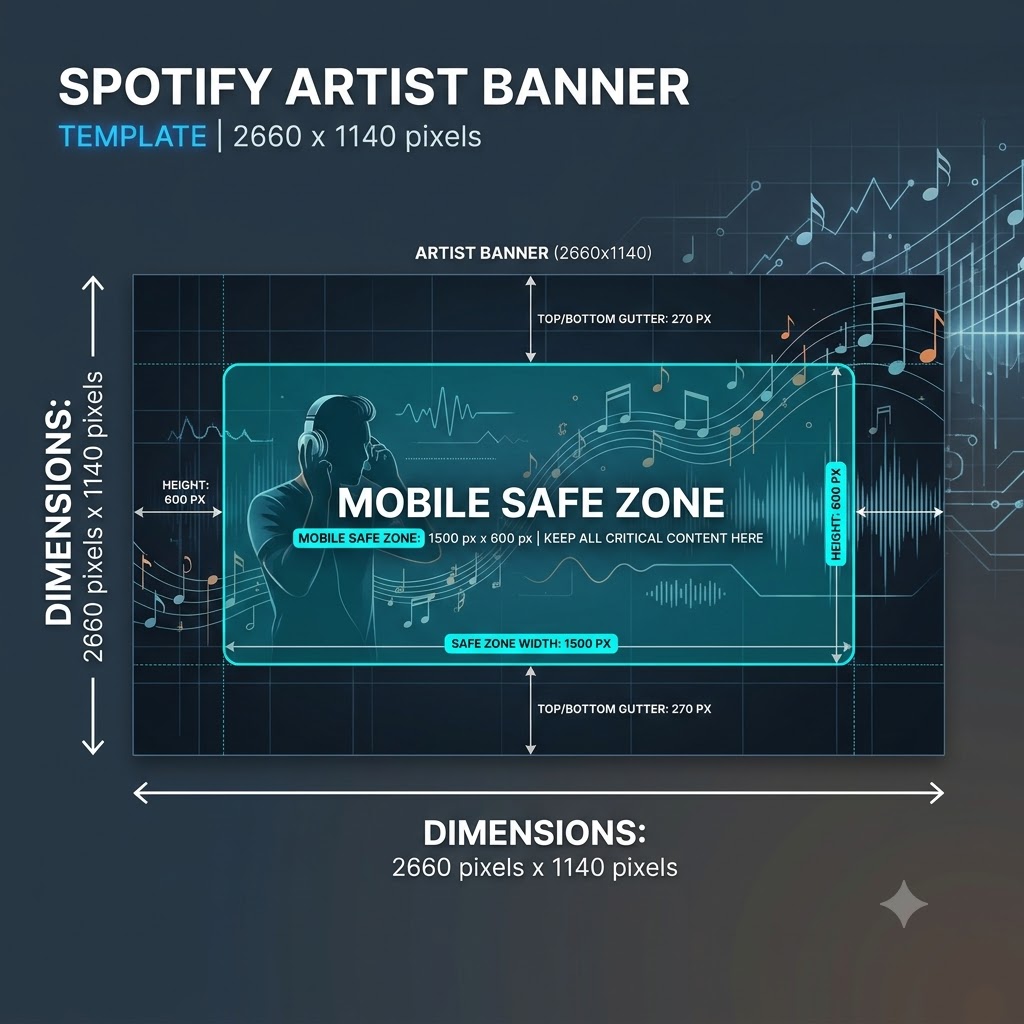
A blurry, poorly cropped Spotify header banner immediately signals one thing to a potential fan: amateur hour. You could have the hardest-hitting production and cleanest mix on the platform, but if a listener clicks through to your artist profile and sees a pixelated logo or a tour poster with half the dates sliced off on mobile, you lose credibility before they even hit play.
Fixing your Spotify artist banner isn’t just about making things look pretty—it’s about professional presentation and conversion. Every profile visitor is a potential long-term listener, follower, or ticket buyer. Here is the complete breakdown of the exact spotify header banner dimensions safe zone template rules you need to know, along with step-by-step graphic design guidelines to keep your visual identity razor-sharp across all screen sizes.
The Real Numbers: Exact Spotify Header Banner Dimensions
If you search online for header specs, you will find a dozen different answers floating around old forums. That is why so many artists wind up with fuzzy, stretched-out graphics.
To ensure your visual profile displays crisp and clear on high-density Retina screens, 4K monitors, and mobile displays alike, build your graphic using these exact technical specifications:
-
Recommended Canvas Size: 2660 × 1140 pixels
-
Minimum Upload Size: 2660 × 1140 pixels
-
Aspect Ratio: 21:9 (Ultrawide format)
-
Color Profile: RGB (DO NOT use CMYK, or your colors will look washed out or distorted)
-
Supported Formats: JPEG, PNG, or GIF (Note: Spotify does not support animated GIFs for headers; it must be a static image)
-
Maximum File Size: 20 MB
Why Does Your Banner Look Blurry?
The most common reason for a blurry banner is uploading an image that is too small. If you upload a standard 1920×1080 graphic, Spotify automatically stretches it to fill the 2660-pixel width required for large desktop displays. That stretching introduces pixelation and soft edges. Always start with a native 2660×1140 pixel canvas to force Spotify’s image processor to scale down rather than stretch up.
Cracking the Mobile Safe Zone (Why Your Design Gets Cropped)
The trickiest part about designing a Spotify artist header is that Spotify uses a responsive display system. The platform doesn’t just shrink your image uniformly—it crops, shifts, and overlays screen elements over your artwork depending on what device your fan is using.
If someone views your profile on a desktop web browser, they see a wide, panoramic slice of your header. But when someone views your profile on an iPhone or Android device—which accounts for over 70% of all stream traffic—Spotify stacks UI elements right on top of your graphic.
The Mobile UI “Blind Spots”
When a fan opens your artist page on a mobile device, Spotify layers the following UI elements directly over your banner image:
-
Your Artist Name (Large bold text)
-
The Verified Artist Checkmark
-
Monthly Listener Count
-
The Main Play Button and Follow/Unfollow Buttons
-
A Dark Gradient Overlay (Spotify automatically adds a black-to-transparent gradient at the bottom of the banner to ensure the white text remains legible)
Because these UI elements sit over the bottom half and lower-left corner of your header, putting anything important in those areas guarantees it will get hidden or look messy.
The Safe Zone Layout Breakdown
To keep your logo, face, tour dates, and featured album art fully visible on every screen, break your 2660×1140 canvas into three visual zones:
+-----------------------------------------------------------------------+
|                                                                       |
|                          TOP MARGIN (150 px)                          |
|             Keep clear of essential text / face features              |
|                                                                       |
|  +-----------------------------------------------------------------+  |
|  |                                                                 |  |
|  |                   THE ULTIMATE SAFE ZONE                        |  |
|  |                    (2100 x 600 px CENTER)                       |  |
|  |      Place your face, band logo, and key text strictly here     |  |
|  |                                                                 |  |
|  +-----------------------------------------------------------------+  |
|                                                                       |
|                     BOTTOM UI OVERLAY BLIND SPOT                      |
|      (Covered by Artist Name, Play Button, and Dark Gradient)        |
+-----------------------------------------------------------------------+
-
The Ultimate Safe Zone (2100 × 600 px): Dead center in your canvas. This is the sweet spot. Place your portrait, key graphic elements, and band logos entirely within this central rectangle.
-
The Outer Side Margins (280 px on Left & Right): Expect these outer edges to get completely cropped away on mobile devices and narrow mobile browsers. Never place logos or tour dates near the left or right borders.
-
The Bottom Danger Zone (Bottom 350 px): Treat the bottom third of your canvas as off-limits for text, sponsor logos, or secondary details. The dark gradient overlay and profile text sit here. Use this background space purely for textures, gradients, or ambient artwork.
Step-by-Step Design Workflow: From Photoshop/Canva to Upload
When setting up your design file in Adobe Photoshop, Illustrator, or Canva, follow this practical checklist to ensure perfect execution every time:
-
Set Up the Canvas Correctly: Create a new workspace with
2660 px widthand1140 px height. Set resolution to72 DPIand color mode toRGB. -
Drop Reference Guides: Draw guideline markers 280 pixels in from the left and right sides, and 350 pixels up from the bottom edge. This marks your safe grid.
-
Position Your Focal Point High and Centered: If you are using a headshot or full-band photo, position eyes and key facial features in the upper-middle quadrant.
-
Test Contrast: Remember that Spotify overlays white typography across the bottom left. If your artwork uses bright white backgrounds in that area, the gradient overlay can create an awkward grey smudge effect. Dark, moody, or medium-tone backgrounds handle the gradient overlay much better.
-
Export for Web: Export your final graphic as a PNG-24 or a high-quality JPEG set to 100% quality. Keep the file size under 20 MB.
Connecting Your Visuals to Your Music Marketing Strategy
Having a crisp, professional Spotify header isn’t just a design cosmetic—it’s the front door to your entire music business. When a prospective fan, music blogger, or playlist curator lands on your profile, high-level graphic branding instantly signals that you take your music seriously. It builds trust before they even hit play.
Once you clean up your visual profile branding, then launch your campaign via our independent rap playlist campaigns.
Pairing professional visual presentation with direct playlist outreach creates a snowball effect: your header converts casual visitors into followers, while targeted playlist placements keep steady traffic flowing back to your page.
Keep Your Artist Branding Sharp While Driving Streams
Ready to turn high-impact visual branding into real streams and active listeners? Don’t let clean artwork go to waste on an empty profile. Pair your refreshed aesthetic with targeted playlist promotion to start growing your monthly listener base today.
Schedule your push on the Music Submission Portal and get your tracks in front of curators who care.