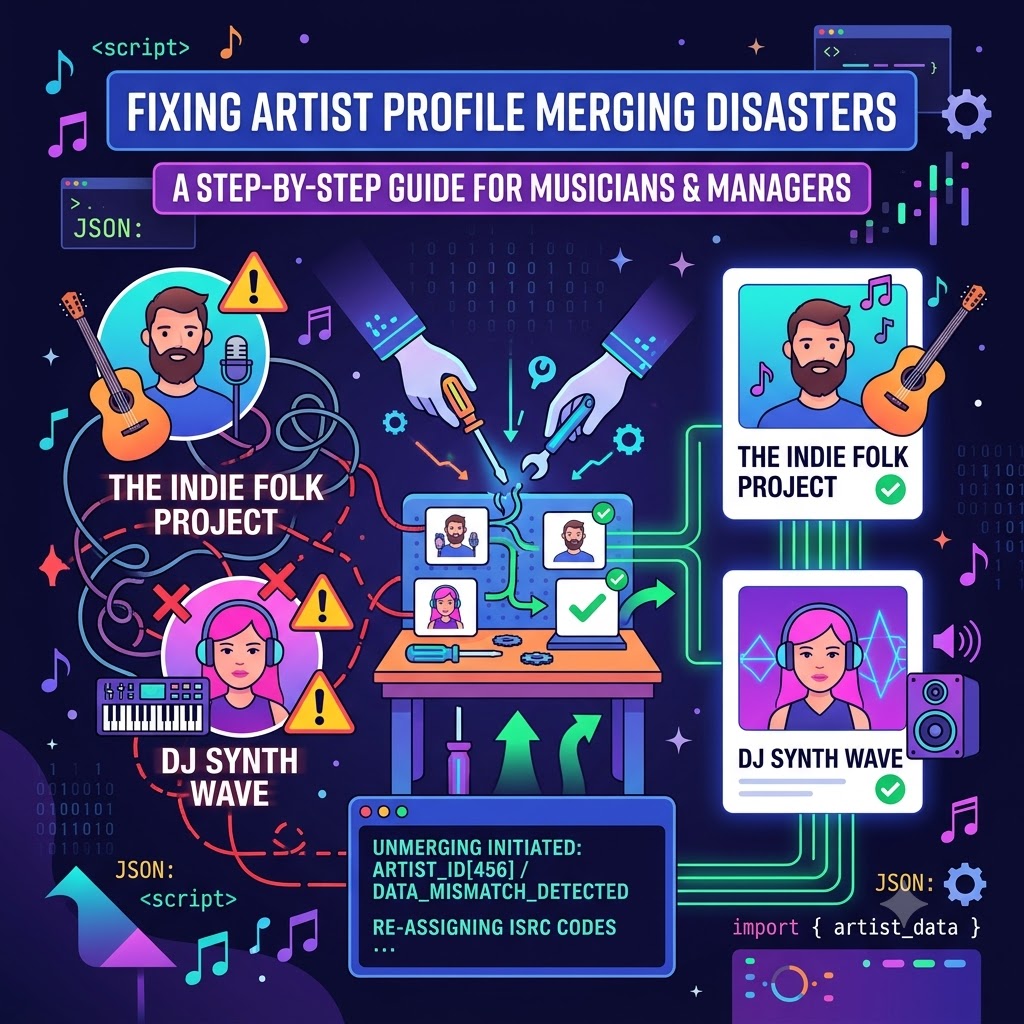
Fixing Artist Profile Merging Disasters When Names Collide (And How to Escalated It Fast)
Few things paralyze an independent rap artist’s promo plan faster than dropping a brand-new single, opening Spotify or Apple Music, and seeing that your fresh track got dropped right onto another artist’s page.
Even worse? Finding out a foreign artist who happens to share your exact stage name just hijacked your discography.
When name collisions hit streaming platforms, algorithms get confused, target listeners get thrown off, and royalty flows can turn into a headache. Your hardcore hip-hop fans end up staring at album art from an overseas pop singer or a classical pianist, while automated recommendations push your music to an audience that has zero interest in rap.
The good news: you don’t have to sit around for weeks waiting for automated scrapers to sort out the mess. If you take charge of the distributor support escalation process using exact Spotify URIs, Apple IDs, and metadata tags, you can separate your releases and rebuild your profile properly.
Why Profile Merging Disasters Actually Happen
Streaming platforms like Spotify, Apple Music, Amazon, and Tidal ingest tens of thousands of tracks every single day. To handle that sheer volume, their ingestion systems rely heavily on automated matching scripts.
When two artists operate under the identical stage name—say, a US hip-hop artist and an indie rock act overseas—the platform’s ingestion pipeline doesn’t automatically check genre, vocal style, or language. It simply matches the text strings. If the system recognizes the text, it dumps the new release onto whichever profile already exists.
This automated guesswork breaks your release rollout in three huge ways:
-
Distorted Listener Data: Automated playlists like Release Radar and Discover Weekly run on listener behavior. If your track is attached to a profile in another genre, the algorithm serves your hip-hop track to people listening to completely different music.
-
Mismatched Discography & Branding: Listeners clicking on your profile see confusing header images, wrong bios, unrelated social links, and tracks that aren’t yours.
-
Loss of Momentum: The crucial first 48 hours of a release matter most for traction. If your release lands on the wrong artist profile, you lose those initial streams and saves while waiting for support tickets.
To fix this for good, standard support forms won’t cut it. You have to send a structured metadata correction ticket directly to your distributor.
The Step-by-Step Escalation Process
Opening a general ticket with phrases like “My song is on the wrong page” will usually land your request at the bottom of a support queue, leading to weeks of back-and-forth canned responses.
Instead, you need to hand distributor support teams the exact identifiers they need to route your request directly to DSP (Digital Service Provider) catalog operations teams.
Step 1: Collect Your Exact Technical Identifiers
Before opening any support ticket, pull up a doc and gather all the necessary backend codes:
-
Track & Product Codes:
-
ISRC (International Standard Recording Code): The 12-character alphanumeric code assigned to your audio recording.
-
UPC (Universal Product Code): The 12- or 13-digit barcode number for your specific single, EP, or album project.
-
-
Platform Specific IDs & URIs:
-
Your Target Profile ID/URI: The direct link or URI to your real profile (if one already exists).
-
The Incorrect Profile ID/URI: The link or URI to the foreign artist’s profile where your track is currently sitting.
-
The Release URI: The direct link or URI to your improperly tagged track/album.
-
How to Find a Spotify URI
On desktop, open Spotify and go to the track or artist profile. Click the three dots (...), hover over Share, hold down Alt (Windows) or Option (Mac), and click Copy Spotify URI. It should look like spotify:artist:XXXXXXXXXXXXXXXXXXXXXX.
Step 2: Submit a Formatted Disambiguation Ticket
Log into your distributor account (DistroKid, TuneCore, CD Baby, Ditto, Symphonic, or LANDR) and open a metadata/catalog support request using a structured format.
Providing organized details gives support staff everything they need to handle the issue on their first pass.
Step 3: Trigger Platform Creator Tools Directly
While your distributor processes the request, speed things up by using native creator portals:
-
Spotify for Artists: Log into your dashboard, navigate to the Help Center, select Music & profile issues, and select Fix an unmerged profile or wrong song on profile. This bypasses general user support and routes directly to Spotify’s content management team.
-
Apple Music for Artists: Log in, navigate to Contact Us, select Catalog / Profile Issues, and submit your Apple ID along with the affected release details.
How to Prevent Profile Merging Disasters in the Future
Once your catalog is cleaned up, take a few steps to protect your future drops from running into the same issue:
-
Input Artist IDs on Every Distribution Delivery: When setting up future releases on your distributor platform, look for the field asking for your Spotify Artist ID and Apple Music Artist ID. Entering these codes upfront manually routes your release to the right profile every time.
-
Claim Your Profiles Early: Secure your Spotify for Artists, Apple Music for Artists, and Amazon Music for Artists accounts the moment your first release is scheduled.
-
Build Strong Metadata Standards: Ensure your artist name formatting, featuring credits, and producer credits stay identical across all drops so distributors don’t accidentally treat you as a new entity.
Once you clean up your artist profile presence, then launch your campaign through our music submission portal. Getting your profiles properly linked ensures that every visitor from your promo campaigns hits a clean page ready for new fans.
🚀 Ready to Push Your Next Release?
Ensure your artist profile is verified and active. Submit your track through our Music Submission Form.