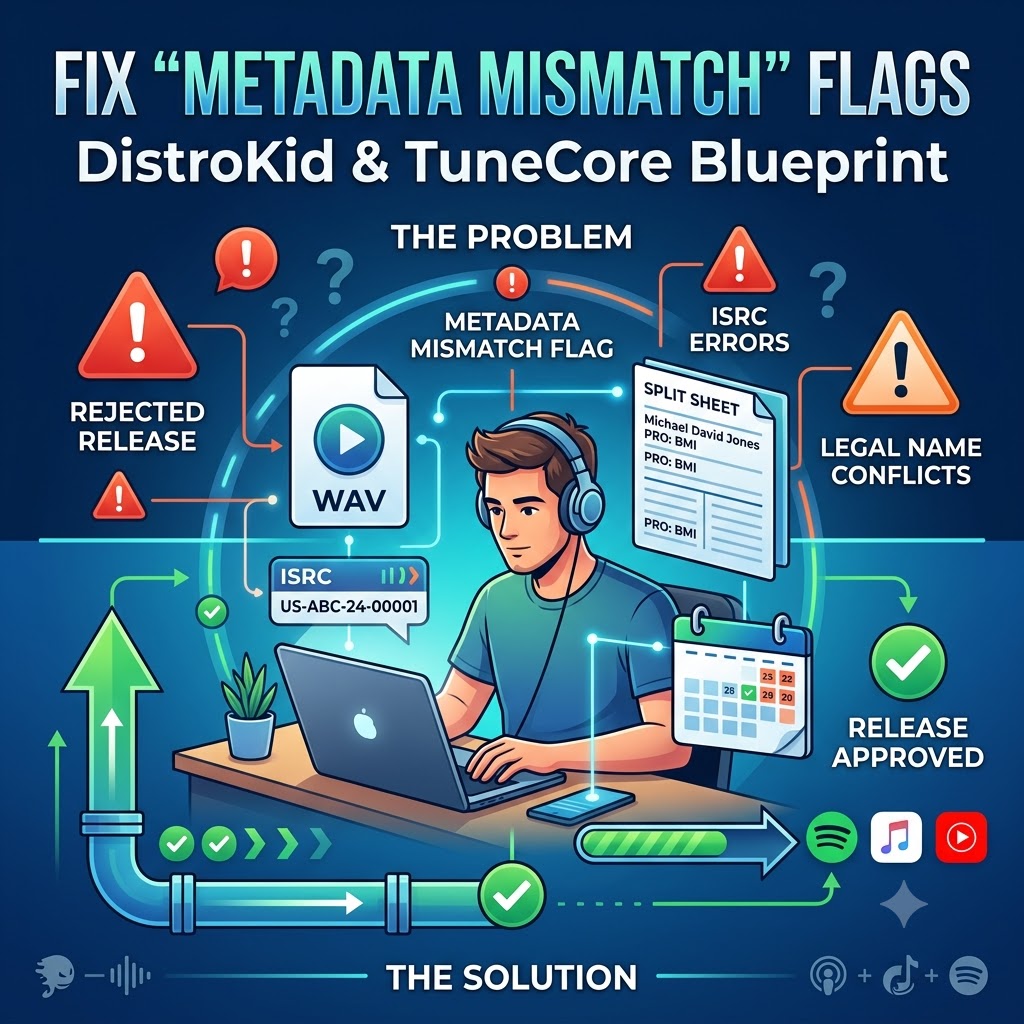
How to Fix “Metadata Mismatch” Flags on DistroKid and TuneCore
Nothing kills the excitement of an upcoming release quite like getting an emergency email from your distributor a few days before your drop date. You’ve locked in the final master, set up your promotional rollout, pitched to playlists, and built up momentum across social media—only to log into DistroKid or TuneCore and see a giant red alert: Metadata Mismatch.
When an aggregator or digital service provider (DSP) like Spotify, Apple Music, or YouTube Music flags your release, the entire rollout comes to a sudden halt. Your track gets pulled from the distribution queue, pitching options freeze, and if you don’t fix the issue quickly, your scheduled drop date flies right past you.
The good news? A metadata mismatch isn’t a permanent ban. It’s simply an automated safety check triggered by conflicting data. In this guide, we’ll break down exactly why these audit flags happen, the three most common triggers, and a step-by-step blueprint to resolve them so your music drops on schedule without a hitch.
What Is a “Metadata Mismatch” Flag (and Why Does It Happen)?
Before diving into the fixes, it helps to understand what aggregators are actually looking for. DSPs manage hundreds of millions of tracks. To keep their catalogs clean, prevent fraud, and ensure publishing royalties get paid out to the right people, distributors use automated auditing systems.
These algorithms cross-examine every piece of text you type into your submission dashboard against:
-
Embedded audio tags inside your master WAV file.
-
Global publishing databases (like ASCAP, BMI, and PRS).
-
Existing releases already active in streaming store databases.
If the system detects even a minor discrepancy—like a misspelled legal name or an extra space in an ISRC code—it triggers an automatic hold. While it feels like a major setback, it’s really just the distributor’s way of saying: “The information you gave us doesn’t match up, and we need you to fix it before we push this to streaming stores.”
The 3 Most Common Triggers (and How to Fix Them)
Most metadata flags stem from three specific mistakes made during the upload process. Here is what causes them and how to clean them up fast.
1. Conflicting Songwriter Legal Names
This is easily the single most frequent reason independent releases get flagged. When you submit songwriter credits, distributors are not asking for your stage name or social media handle—they require your full legal name to connect your track to publishing entities and pay out mechanical and performance royalties.
The Error
Typing a stage name (e.g., “DJ Nova”) into the songwriter box, using a shortened nickname (“Mike Jones” instead of “Michael David Jones”), or swapping the order of your first and last name. If your distributor checks your legal credits against your Performance Rights Organization (PRO) profile or publishing administrator and the names don’t align, the system flags the track for conflicting songwriter identity.
The Fix
-
Use Legal Names for Credits: Always enter full legal names (First Name, Middle Name, Last Name) exactly as they appear on your government-issued ID and your PRO account (ASCAP, BMI, SOCAN, PRS, etc.).
-
Keep Artist Monikers Separate: Your stage name belongs strictly in the Primary Artist or Featured Artist fields. Never mix stage names into the official songwriter/composer line unless your legal name is legitimately registered under a formal pseudonym with your PRO.
-
Match Punctuation and Order: Ensure hyphens, middle initials, and suffixes (like Jr. or III) are identical across all platforms.
2. Mismatched or Misassigned ISRC Numbers
An International Standard Recording Code (ISRC) is the unique digital fingerprint assigned to a specific audio recording. No two recordings should ever share the same ISRC, and a single recording should never have more than one.
The Error
Mismatches usually happen during re-releases, remasters, or when moving a track from a single release onto an upcoming album. Common mistakes include:
-
Letting your distributor auto-generate a brand-new ISRC for a song you previously released as a standalone single.
-
Accidentally copy-pasting an ISRC with a missing digit or hidden space.
-
Re-uploading a new master file that has a different duration or audio structure while attempting to reuse an old ISRC.
The Fix
-
Reuse ISRCs for Identical Masters: If you are adding a previously released single onto an album or re-distributing an existing master, always enter the original ISRC assigned during its first release. This preserves your streaming counts and playlist placements.
-
Generate a New Code for New Mixes: If you made significant changes to the audio—such as adding an extended intro, cutting a verse, or altering the track length by more than a few seconds—the track is legally considered a new recording. Assign it a new ISRC code.
-
Double-Check Formatting: Copy your ISRC directly from your original distributor invoice or dashboard to avoid typos.
3. Unapproved Producer Tags, Features, and Title Formatting
DSPs maintain strict style guidelines regarding track titles. Attempting to force extra information into the main title field is a quick way to get flagged by content moderation teams.
The Error
Including promotional text, beatmaker credits, or URL handles directly inside the track title field. Examples that trigger instant flags include:
-
My Track (Prod. by BeatMakerX) -
Song Title [Out Now] -
My Track (Official Audio) -
Song Title (feat. @ArtistHandle)
Stores like Apple Music and Spotify automatically reject releases that use primary title fields for marketing, handles, or unauthorized formatting.
The Fix
-
Clean Up Main Titles: Keep your main track title completely free of clutter.
-
Use Dedicated Contributor Fields: If you want to credit a producer, featured artist, or engineer, use the dedicated dropdown fields provided in the upload form (e.g., selecting “Featured Artist” or “Producer” from the role menu).
-
Follow Standard Capitalization: Avoid typing titles in ALL CAPS unless it is a recognized brand styling that you can verify, as DSP algorithms often flag full-caps titles as spam formatting.
Your Step-by-Step Troubleshooting Blueprint
If your drop is currently sitting on hold, follow this step-by-step checklist to clear the audit flag as quickly as possible:
-
Read the Specific Rejection Reason: Log into your DistroKid or TuneCore dashboard and check your email inbox (including spam). Look for the specific error message provided by the moderation team.
-
Audit Your Metadata Side-by-Side: Open a clean document and list out your exact details: Legal Songwriter Names, PRO CAE/IPI numbers, primary/featured artist names, and ISRC codes. Compare this line-by-line against your distributor’s form.
-
Check the WAV File Header: Ensure the metadata embedded inside your master WAV file matches the text on your form. If necessary, re-export the audio from your DAW with accurate ID3 tags.
-
Edit the Metadata in Your Dashboard: Make the required corrections directly inside the release edit page on DistroKid or TuneCore. Do not create a brand-new release submission while an existing draft is flagged, as duplicate submissions cause further delays.
-
Resubmit and Notify Support: Hit resubmit. If your release date is less than five business days away, open a support ticket with your distributor, include your release UPC, and clearly state that you have corrected the flagged metadata fields.
Streamline Your Next Music Drop
Resolving distribution flags comes down to organization and attention to detail. Taking the extra five minutes to double-check split sheets, legal names, and title rules before hitting submit saves you weeks of frustration right before release day.
Once you clean up your distribution pipeline, then run an organized campaign through our verified music submission portal (https://itshiphopmusic.com/submit/music-submission/).
CTA Box: Ensure your release drops smoothly without distributor delays. Submit your track through our Music Submission Form (https://itshiphopmusic.com/submit/music-submission/).