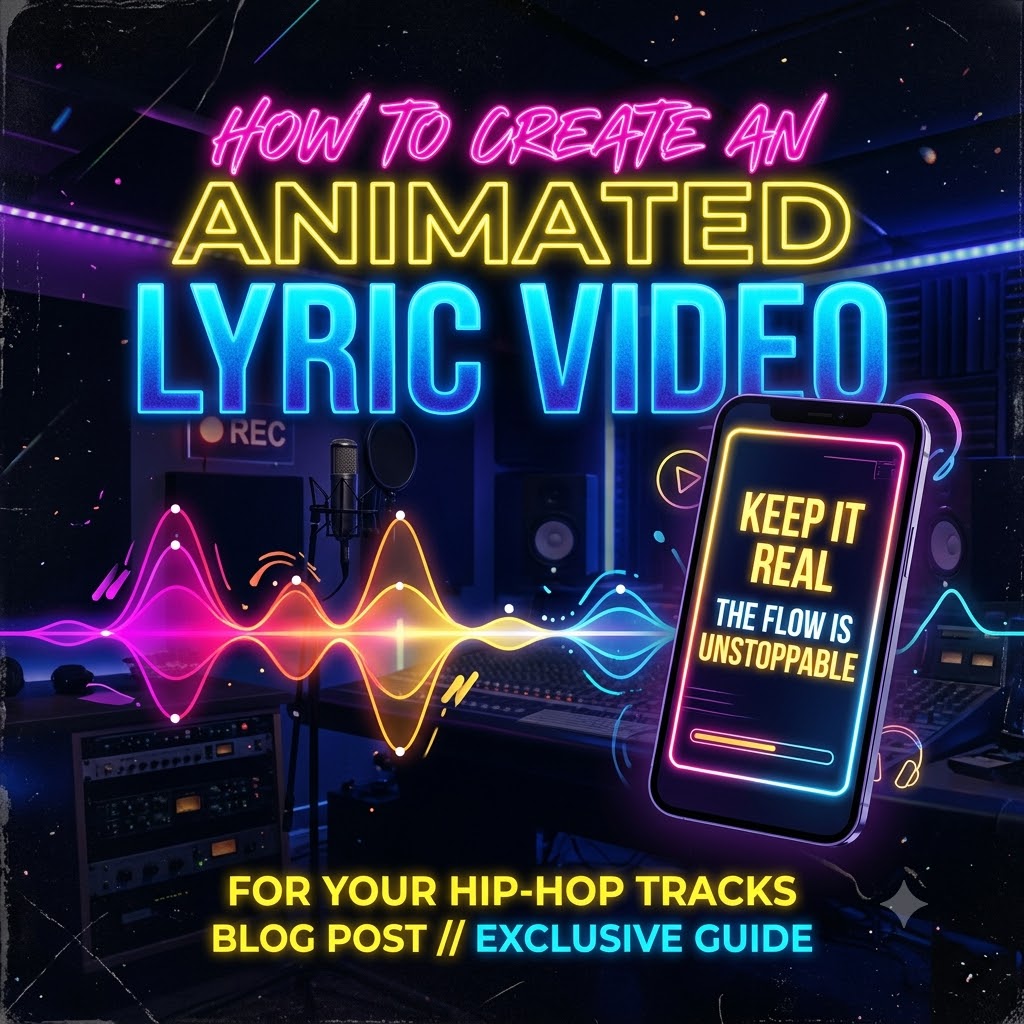
How to Make an Animated Lyric Video for a Rap Song Using Canva (Free)
Let’s be honest: dropping a new track without visuals in today’s music landscape is like handing someone a cassette tape in a Ferrari dealership. It just doesn’t work. Whether you’re an independent artist grinding out of a home studio, a producer building your catalog, or an engineer stepping behind the mic, listeners watch music as much as they stream it.
If you’re dropping a hard-hitting drill single, a gritty boom-bap anthem, or a melodic trap banger, you need motion. You need content that commands attention on YouTube, TikTok, Instagram Reels, and YouTube Shorts.
The problem? Most independent artists don’t have a Hollywood budget for a cinematic live-action shoot, nor do they have the spare hours to wrestle with heavy, complex software like Adobe After Effects just to get their words moving on a screen.
If you’ve been looking for a way out of that creative bottleneck, you’re in the right place. In this guide, we’re going to walk through how to make animated lyric video for rap song free, using Canva’s powerful kinetic typography tools and video templates. No pricey subscriptions, no steep learning curves—just clean, hard-hitting visuals that match your cadence.
Why a Lyric Video is Your Best Growth Strategy Right Now
Before we crack open Canva and start dropping text boxes, let’s talk about why you should care. Many artists think, “Man, I spent all my money on the mix and master, I’ll just throw the cover art up as a static image on YouTube and call it a day.”
That’s a fast track to getting skipped. Here is why a lyric video changes the game:
-
Viewer Retention: Static images kill watch time. Moving text, subtle background animations, and flashing highlights keep human eyes glued to the screen, which signals to the YouTube algorithm that your video is worth pushing.
-
Fan Connection: Rap is all about the bars. If you’ve got clever punchlines, multi-syllabic rhymes, or double entendres, a lot of listeners will miss them on the first pass. Putting the lyrics front and center helps your audience catch your pen game immediately.
-
Algorithm Consistency: It keeps your YouTube channel active between major video shoots using our hip-hop music video promotion campaigns.
What You Need Before You Start
You don’t need a beast-mode PC with 64GB of RAM. In fact, because Canva runs right in your web browser, you can build your video on a basic laptop or even a tablet.
Make sure you have these three things ready before you dive in:
-
Your Final Audio File: Have your finished, mastered track exported as a clean
.mp3or.wavfile. -
Your Lyrics Typed Out: Have a text document with your verses, hooks, and intro ready to copy-paste. Trust me, trying to transcribe your own fast flow from scratch inside a video editor is a headache you don’t need.
-
A Vision for the Vibe: Are we going for dark and aggressive? Neon and futuristic? Lo-fi and smoky? Knowing your aesthetic beforehand makes picking assets take seconds instead of hours.
Step-by-Step Tutorial: Building Your Rap Lyric Video in Canva
Let’s get into the actual workflow. Open up another browser tab, log into Canva, and let’s build your video step by step.
Step 1: Set Up Your Project Dimensions
When you log in, click the Create a design button in the top right corner.
-
If your primary home for the video is YouTube, search for and select Video (1920x1080px).
-
If you’re pushing this primarily to TikTok, Reels, or Shorts, choose Mobile Video (1080x1920px).
Tip: If you want to cover all your bases, design for vertical first, or create a wide version for YouTube and crop a secondary version for short-form platforms. For this tutorial, let’s assume we’re building a standard widescreen YouTube lyric video.
Step 2: Set the Vibe with a Dynamic Background
Rap music demands a specific visual attitude. You want high contrast, moody lighting, and textures that feel alive.
-
Head over to the Elements tab on the left sidebar.
-
Search for video loops using terms like “dark smoke background loop,” “rain on glass,” “gritty black and white grain texture,” or “neon city lights fast motion.”
-
Drag the video element onto your canvas and stretch it to fill the entire frame.
-
Color Correction Trick: If your background is too bright and distracts from the text, click on the video, hit Edit video or adjust the transparency/brightness slider, and drop it down slightly. You want your text to be the absolute star of the show.
Step 3: Drop Your Audio on the Timeline
You need to hear your rhythm to time your text right.
-
Go to the Uploads tab on the left and upload your song file.
-
Drag your audio file down onto the timeline at the bottom of the screen.
-
Press play and listen closely. Jot down or mentally note the timestamps where your bars hit, where the beat drops, and where the hook starts. This is going to save you so much guesswork when we start animating.
Step 4: Choose the Right Font for Hip-Hop
Typography speaks before a single word is read. If you use a thin, elegant script font for a gritty trap song, it’s going to look and feel completely wrong.
-
Press
Ton your keyboard to drop a text box onto your screen. -
Type out your first line.
-
Head to the font dropdown and look for thick, heavy, statement-making fonts. Great free options on Canva include:
-
Anton (clean, bold, modern block style)
-
Bebas Neue (tall, punchy, great for fast-moving text)
-
League Spartan or Impact (classic heavy hitters)
-
-
Position your text somewhere clear—usually centered or slightly off-center depending on your background layout.
Step 5: Add Kinetic Typography (Bring the Text to Life)
This is where standard lyric videos get boring, and great lyric videos stand out. Rap moves fast, so your text needs to move with the flow.
-
Select your text box and click the Animate button on the top toolbar.
-
Canva offers both Enter/Exit animations and Text-specific animations. For hip-hop, look at options like:
-
Typewriter (great for verses where bars roll out steadily)
-
Neon or Pulse (amazing for heavy bass hits in the hook)
-
Rise or Baseline (clean transitions that don’t overwhelm the eye)
-
-
The Pro Technique for Rap: Don’t just slap a whole 8-bar verse onto one screen and animate it. Break your lyrics down phrase by phrase—or even word by word for rapid-fire flows. Short, punchy bursts of text flashing on screen right as you say them mimic professional lyric videos from major labels.
-
Use the timeline at the bottom to trim and slide your text blocks left and right until the appearance of each word locks in precisely with your vocal delivery.
Step 6: Layer in Transitions and Effects
To keep people watching from the first bar to the outro fade-out:
-
Add subtle video transitions between sections (like a quick fade or slide) when the beat switches up.
-
Layer an overlay effect—like a dust particle video or light leak—over your text layers, setting the blend mode to Screen or Overlay so it sits on top of everything and gives it that authentic film-cell look.
Step 7: Export and Double-Check
-
Once your entire song is mapped out, hit the play button on the timeline and watch the whole thing from top to bottom. Are any words cutting off too early? Is the text easy to read against the background?
-
Make your final tweaks, then hit Share > Download.
-
Set your file type to MP4 Video, select all pages, and download. Boom—you’ve just built a professional-grade music video entirely for free.