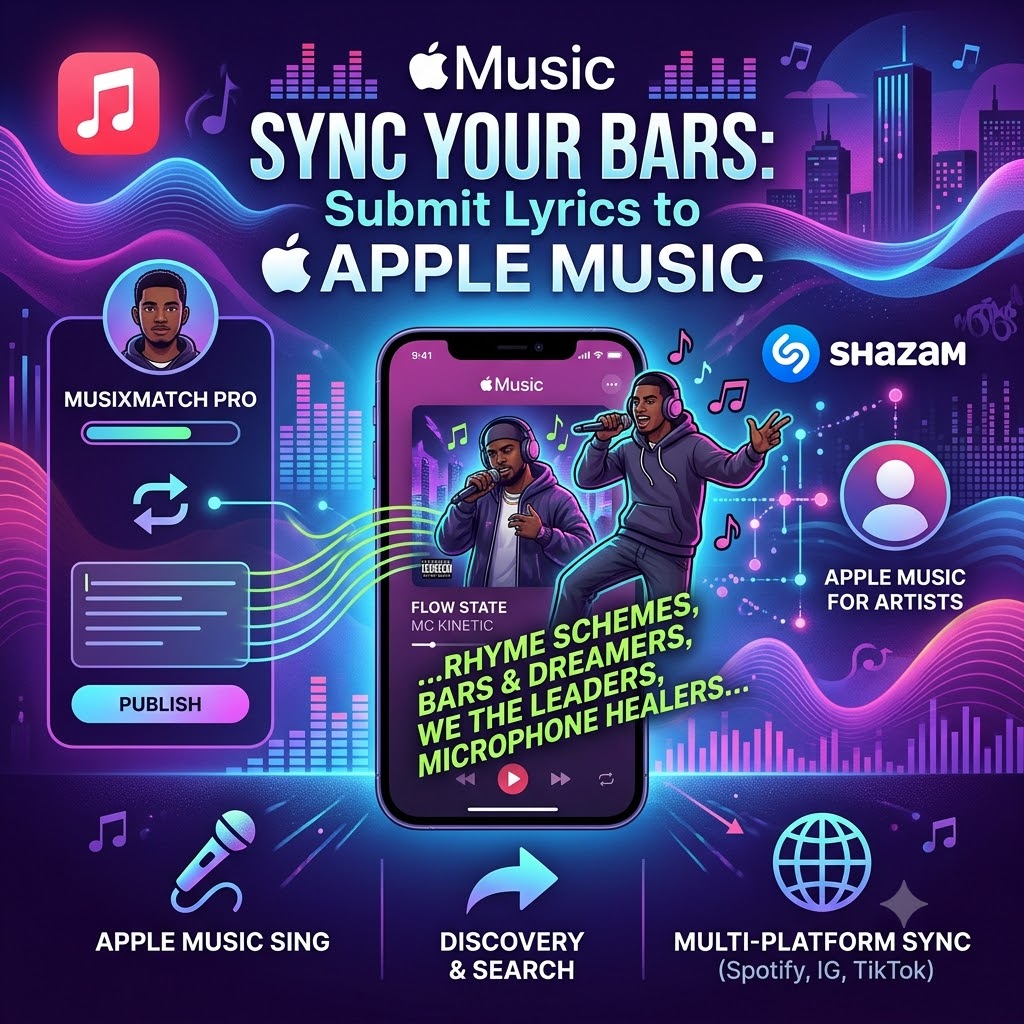
How to Submit Lyrics to Apple Music (The Complete MC’s Guide to Musixmatch & Shazam)
In hip-hop, your penmanship is your signature. Whether you’re dropping dense multisyllabic rhyme schemes, rapid-fire double-time flows, or heavy regional slang, making sure your listeners catch every single bar is critical.
On Apple Music, modern listeners expect way more than a static wall of text. They want real-time, line-by-line synced lyrics that light up with the beat—the exact feature that powers Apple Music Sing.
If your lyrics are missing, full of typos, or totally out of sync, you’re leaving money and engagement on the table. Fans can’t sing along, they can’t look up that killer line they just heard, and your music looks amateurish next to major label drops.
Here is everything you need to know about how to submit lyrics to Apple Music using Musixmatch Pro and Shazam/Apple Music for Artists, taking your tracks from raw audio files to interactive lyric displays.
Why Time-Coded Lyrics Are Essential for Independent Rappers
Before diving into the steps, let’s talk about why spending ten minutes syncing your lyrics actually matters for your career. Streaming algorithms and fan behavior have shifted dramatically, and lyric metadata plays a massive role in how music gets discovered today.
1. Unlocks Apple Music Sing (Karaoke Mode)
Apple Music Sing isn’t just a fun feature; it’s a major driver of user engagement. When your track has time-coded lyrics attached, Apple Music automatically enables vocal level adjustments and line-by-line highlighting. If your lyrics aren’t synced, your track gets left out of this experience entirely.
2. Powers Lyric Search Discovery
Have you ever had a song stuck in your head, but you only remembered one specific bar? Apple Music and Shazam both allow users to search for songs using lyric fragments. If your lyrics aren’t officially indexed in their database, potential new fans searching for your hook will draw a blank.
3. Turns Listeners Into Active Fans
Static audio is easy to ignore in the background. But when listeners open Apple Music and see your verses scrolling in real time, they connect with your storytelling on a deeper level. It turns a casual background stream into an active listening session.
4. One Sync Powers the Entire Internet
When you sync your lyrics through Musixmatch Pro, you aren’t just updating Apple Music. That same metadata feeds into Spotify, Instagram Stories, TikTok, Amazon Music, and Shazam simultaneously. You do the work once, and your music looks professional everywhere.
Method 1: The Standard Route — Syncing via Musixmatch Pro
Musixmatch is Apple Music’s primary third-party partner for timed lyrics. If you want those clean, glowing, karaoke-style scrolling lyrics on Apple Music, this is the portal you need to use.
Step 1: Claim Your Musixmatch Pro Profile
First things first, you need to set up an official artist profile on Musixmatch.
-
Go to Musixmatch Pro and create an account using your official business or artist email.
-
Search for your artist name and select Claim Artist Profile.
-
Link your Spotify or Apple Music artist page to prove ownership. Verification usually takes anywhere from a few hours to a couple of days.
Step 2: Transcribe Your Lyrics (And Follow the Formatting Rules)
Once your account is verified, search for the track you want to edit. Click on the lyrics tab and paste or type in your words.
This is where a lot of rappers mess up. Apple Music and Musixmatch have strict editorial guidelines. If you break them, your lyrics will get flagged and rejected by content moderators.
Crucial Rules for Formatting Rap Lyrics:
Drop the Section Labels: Do not write
[Verse 1],[Chorus], or[Bridge]. Write only the words spoken in the song.Keep Capitalization Standard: Capitalize the start of each line and proper nouns. Don’t write in ALL CAPS unless it’s a specific acronym (like NYC or LA).
Spell Out Every Single Ad-Lib: If you say “yeah,” “uh,” or drop a producer tag in the background, you have to write it out. Every vocal sound on the recording needs a matching word in the text.
Don’t Censor Profanity: Write out explicit words fully. Do not use asterisks like
f***ors***—the explicit tag on the release already covers age-gating.
Step 3: Time-Code Your Verses
Now comes the hands-on part: syncing the text to the audio track.
-
Open the Musixmatch Pro desktop app or mobile interface.
-
Hit play on your track.
-
Tap the spacebar at the exact millisecond the first word of each line is uttered.
-
Go back and use the line-by-line editing tool to fine-tune the timing. Make sure the highlight moves cleanly with your cadence, especially during fast-paced verses or complex double-time pockets.
-
If there is a long beat switch or instrumental section over 15 seconds, tag it as
#INSTRUMENTALso the system knows the vocals have paused.
Step 4: Publish and Wait for Ingestion
Once your timing looks tight, click Publish. Musixmatch will run an automated quality check, and once approved, your synced lyrics will roll out to Apple Music within 2 to 7 business days.
Method 2: The Direct Route — Apple Music for Artists (Shazam)
If you just need static lyrics online quickly, or if you noticed a typo in an existing release, you can handle it directly through your Apple Music for Artists dashboard (which shares data directly with Shazam).
Step-by-Step Instructions:
-
Log into your Apple Music for Artists dashboard on a desktop browser.
-
Select the Artist Content tab and navigate to the track you want to update.
-
Scroll down to the Lyrics section. If there are no lyrics attached, click Add Lyrics.
-
Copy and paste your clean, formatted text into the box. Make sure your line breaks mirror the natural pauses in your delivery.
-
Hit Submit.
Keep in mind: Submitting lyrics directly through Apple Music for Artists only provides static text. If you want the live, scrolling, interactive lyric experience on Apple Music Sing, you still need to complete the time-syncing process inside Musixmatch Pro.
Musixmatch Pro vs. Apple Music for Artists: Quick Breakdown
| Feature | Musixmatch Pro Portal | Apple Music for Artists |
| Primary Output | Time-coded, live scrolling lyrics | Static plain-text block |
| Apple Music Sing Support | Yes (Full interactive sync) | No (Text display only) |
| Multi-Platform Distribution | Apple, Spotify, Instagram, TikTok, Amazon | Apple Music & Shazam only |
| Turnaround Time | 2–7 business days | 3–10 business days |
Mistakes That Will Get Your Lyrics Rejected
Nothing is more frustrating than waiting a week only to find out your submission got rejected. Here are the top mistakes independent artists make when submitting lyrics:
-
Adding Unofficial Social Handles: Don’t plug your Instagram or Twitter at the end of the song (
@yourname on IG). -
Inaccurate Phonetics: Don’t spell words phonetically if standard spelling exists, unless it’s established regional slang that changes the meaning of the line.
-
Lazy Syncing: Tapping through lines haphazardly will cause your submission to fail quality control. The sync must match the audio wave precisely.
Elevating Your Independent Hip-Hop Campaign
Getting your lyric metadata right is a foundational step in running a professional release campaign. It makes your music look established, helps fans connect with your words, and improves your overall stream count across major platforms.
As you finalize your release checklist, pair your interactive lyric syncing with in-depth track reviews on our online music review platform.
Build Your Media Authority
Direct streaming engagement works best when backed by legitimate editorial press coverage. Build your verifiable media source history. Get featured on our platform via the Music Review Submission Portal.